

Ziyaretçiler için gizlenmiş link,görmek için üye olmalısınız!
Giriş yap veya üye ol.
Ziyaretçiler için gizlenmiş link,görmek için üye olmalısınız!
Giriş yap veya üye ol.
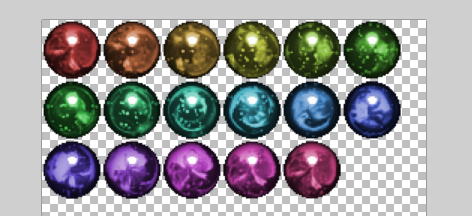
Değişik Tarzlarda & Renklerde | Görev Çubuğu Küresi
Metin2 oyuncuları için özelleştirilebilir arayüz elemanları, oyun deneyimini kişiselleştirmenin en önemli yollarından biridir.
Bu rehberde, görev çubuğu küresi'nin farklı tarz ve renk alternatifleriyle nasıl daha etkileyici hale getirileceğini detaylıca ele alacağız.
Özellikle Metin2 Client ve Metin2 Pack kullanan kullanıcılar için bu öğeler, hem estetik hem de işlevsellik açısından büyük fark yaratabilir.
Görev Çubuğu Küresi Nedir?
Görev çubuğu küresi, Metin2 oyununda aktif görevleri hızlıca takip etmeyi sağlayan kullanıcı arayüzü (UI) bileşenidir.
Genellikle ekranın alt kısmında yer alır ve mevcut görevlerin ilerleme durumunu, hedefleri ve ödüllerini görsel olarak sunar.
Orijinal hali sadece temel işlevi yerine getirse de, özelleştirilmiş versiyonlarla tamamen farklı bir hava katılabilir.
Farklı Tarz Seçenekleri
1. Minimalist Tarz: Sade, şeffaf bir arka planla çalışan ve sadece gerekli bilgileri gösteren versiyon.
Bu tarz, yoğun savaş anlarında dikkat dağıtıcı olmayan bir deneyim sunar.
2. Egzotik Temalı: Ejderha, kılıç, kalkan gibi motiflerle zenginleştirilmiş, oyunun fantastik atmosferine uyumlu tasarımlar.
3. Cyberpunk / Neon Tarz: Parlak neon çizgileri ve elektronik efektler içeren modern bir görünüm.
Özellikle Metin2 PvP Client kullanan oyuncular arasında popülerdir.
4. Klasik Çin Estetiği: Geleneksel Çin desenleri, kaligrafi ve doğal renk paletleriyle zenginleştirilmiş versiyon.
Renk Paletleri ve Kullanım Önerileri
- Kırmızı: Acil görevler veya zaman sınırlı müşterekler için uyarı rengi olarak idealdir.
- Yeşil: Tamamlanmış görevlerde kullanılarak olumlu geri bildirim sağlar.
- Açık Mavi (#54acd2): Genel bilgi ve durum göstergeleri için en uygun renktir.
- Mor (#9365b8): Teknik veya gelişmiş ayarlar için vurgu rengi olarak tercih edilir.
- Turuncu: Zaman hassas görevlerde dikkat çekmek için etkilidir.
Nasıl Özelleştirilir?
Özelleştirilmiş görev çubuğu küresi eklemek için öncelikle uyumlu bir Metin2 Pack dosyasına ihtiyacınız vardır.
Bu paketler genellikle interface, texture ve effect klasörlerini içerir.
Dosyaları doğru şekilde yerleştirdikten sonra, Metin2 Client üzerinden yapılandırma dosyası (clientinfo.xml gibi) düzenlenerek yeni küre aktif hale getirilebilir.
Hata almanız durumunda Metin2 Client Fix rehberlerimizi inceleyebilirsiniz.
Aşağıda, farklı görev çubuğu küre tasarımlarını gösteren örnek görseller ve tanıtım videoları yer almaktadır:
Neden Özelleştirmeliyim?
Standart arayüz uzun süreli oyunda yorucu hale gelebilir.
Kişiselleştirilmiş bir görev çubuğu küresi, hem görsel keyfi artırır hem de belirli görev türlerini hızlıca ayırt etmenizi sağlar.
Ayrıca Metin2 Custom Client kullanan sunucular, bu tür detaylarla oyuncu deneyimini önemli ölçüde zenginleştirir.
Sonuç
Görev çubuğu küresi, sadece bir UI elemanı olmanın ötesinde oyun içi psikolojiyi etkileyen önemli bir araçtır.
Doğru tarz ve renk seçimiyle hem performansınızı artırabilir hem de oyun keyfinizi maksimum seviyeye çıkarabilirsiniz.
Tüm Metin2 Client Download ve Metin2 Pack Download işlemleri için sitemizi ziyaret edebilir, en güncel ve uyumlu dosyalardan faydalanabilirsiniz.
Bu rehberde, görev çubuğu küresi'nin farklı tarz ve renk alternatifleriyle nasıl daha etkileyici hale getirileceğini detaylıca ele alacağız.
Özellikle Metin2 Client ve Metin2 Pack kullanan kullanıcılar için bu öğeler, hem estetik hem de işlevsellik açısından büyük fark yaratabilir.
Görev Çubuğu Küresi Nedir?
Görev çubuğu küresi, Metin2 oyununda aktif görevleri hızlıca takip etmeyi sağlayan kullanıcı arayüzü (UI) bileşenidir.
Genellikle ekranın alt kısmında yer alır ve mevcut görevlerin ilerleme durumunu, hedefleri ve ödüllerini görsel olarak sunar.
Orijinal hali sadece temel işlevi yerine getirse de, özelleştirilmiş versiyonlarla tamamen farklı bir hava katılabilir.
Farklı Tarz Seçenekleri
1. Minimalist Tarz: Sade, şeffaf bir arka planla çalışan ve sadece gerekli bilgileri gösteren versiyon.
Bu tarz, yoğun savaş anlarında dikkat dağıtıcı olmayan bir deneyim sunar.
2. Egzotik Temalı: Ejderha, kılıç, kalkan gibi motiflerle zenginleştirilmiş, oyunun fantastik atmosferine uyumlu tasarımlar.
3. Cyberpunk / Neon Tarz: Parlak neon çizgileri ve elektronik efektler içeren modern bir görünüm.
Özellikle Metin2 PvP Client kullanan oyuncular arasında popülerdir.
4. Klasik Çin Estetiği: Geleneksel Çin desenleri, kaligrafi ve doğal renk paletleriyle zenginleştirilmiş versiyon.
Renk Paletleri ve Kullanım Önerileri
- Kırmızı: Acil görevler veya zaman sınırlı müşterekler için uyarı rengi olarak idealdir.
- Yeşil: Tamamlanmış görevlerde kullanılarak olumlu geri bildirim sağlar.
- Açık Mavi (#54acd2): Genel bilgi ve durum göstergeleri için en uygun renktir.
- Mor (#9365b8): Teknik veya gelişmiş ayarlar için vurgu rengi olarak tercih edilir.
- Turuncu: Zaman hassas görevlerde dikkat çekmek için etkilidir.
Nasıl Özelleştirilir?
Özelleştirilmiş görev çubuğu küresi eklemek için öncelikle uyumlu bir Metin2 Pack dosyasına ihtiyacınız vardır.
Bu paketler genellikle interface, texture ve effect klasörlerini içerir.
Dosyaları doğru şekilde yerleştirdikten sonra, Metin2 Client üzerinden yapılandırma dosyası (clientinfo.xml gibi) düzenlenerek yeni küre aktif hale getirilebilir.
Hata almanız durumunda Metin2 Client Fix rehberlerimizi inceleyebilirsiniz.
XenForo ile Video ve Fotoğraf Ekleme
Aşağıda, farklı görev çubuğu küre tasarımlarını gösteren örnek görseller ve tanıtım videoları yer almaktadır:
Neden Özelleştirmeliyim?
Standart arayüz uzun süreli oyunda yorucu hale gelebilir.
Kişiselleştirilmiş bir görev çubuğu küresi, hem görsel keyfi artırır hem de belirli görev türlerini hızlıca ayırt etmenizi sağlar.
Ayrıca Metin2 Custom Client kullanan sunucular, bu tür detaylarla oyuncu deneyimini önemli ölçüde zenginleştirir.
Sonuç
Görev çubuğu küresi, sadece bir UI elemanı olmanın ötesinde oyun içi psikolojiyi etkileyen önemli bir araçtır.
Doğru tarz ve renk seçimiyle hem performansınızı artırabilir hem de oyun keyfinizi maksimum seviyeye çıkarabilirsiniz.
Tüm Metin2 Client Download ve Metin2 Pack Download işlemleri için sitemizi ziyaret edebilir, en güncel ve uyumlu dosyalardan faydalanabilirsiniz.
Different Styles & Colors | Taskbar Sphere
Customizable interface elements are one of the most important ways to personalize the gaming experience for Metin2 players.
In this guide, we will examine in detail how the taskbar sphere can be made more impressive with different styles and color alternatives.
Especially for users utilizing Metin2 Client and Metin2 Pack, these elements can make a significant difference both aesthetically and functionally.
What Is the Taskbar Sphere?
The taskbar sphere is a user interface (UI) component in Metin2 that allows quick tracking of active quests.
It is usually located at the bottom of the screen and visually displays the progress, objectives, and rewards of current quests.
While its original version only fulfills basic functions, customized versions can add a completely different atmosphere.
Different Style Options
1. Minimalist Style: A clean version with a transparent background that shows only essential information.
This style offers a non-distracting experience during intense combat moments.
2. Exotic Theme: Designs enriched with motifs such as dragons, swords, and shields, harmonizing with the game’s fantasy atmosphere.
3. Cyberpunk / Neon Style: A modern look featuring bright neon lines and electronic effects.
Particularly popular among players using Metin2 PvP Client.
4. Classic Chinese Aesthetics: Versions enhanced with traditional Chinese patterns, calligraphy, and natural color palettes.
Color Palettes and Usage Recommendations
- Red: Ideal as a warning color for urgent or time-limited quests.
- Green: Provides positive feedback when used for completed quests.
- Light Blue (#54acd2): The most suitable color for general information and status indicators.
- Purple (#9365b8): Preferred as an accent color for technical or advanced settings.
- Orange: Effective for drawing attention in time-sensitive quests.
How to Customize?
To add a customized taskbar sphere, you first need a compatible Metin2 Pack file.
These packages usually include interface, texture, and effect folders.
After placing the files correctly, the new sphere can be activated by editing configuration files (such as clientinfo.xml) via the Metin2 Client.
If you encounter errors, you can refer to our Metin2 Client Fix guides.
Below are example images and demo videos showcasing different taskbar sphere designs:
Why Should You Customize?
The standard interface can become monotonous over long gaming sessions.
A personalized taskbar sphere not only enhances visual appeal but also helps you quickly distinguish between different types of quests.
Moreover, servers using Metin2 Custom Client significantly enrich the player experience through such details.
Conclusion
The taskbar sphere is not just a UI element—it is a crucial tool that affects in-game psychology.
With the right style and color choices, you can both boost your performance and maximize your enjoyment of the game.
Visit our site for all Metin2 Client Download and Metin2 Pack Download operations to benefit from the latest and most compatible files.
In this guide, we will examine in detail how the taskbar sphere can be made more impressive with different styles and color alternatives.
Especially for users utilizing Metin2 Client and Metin2 Pack, these elements can make a significant difference both aesthetically and functionally.
What Is the Taskbar Sphere?
The taskbar sphere is a user interface (UI) component in Metin2 that allows quick tracking of active quests.
It is usually located at the bottom of the screen and visually displays the progress, objectives, and rewards of current quests.
While its original version only fulfills basic functions, customized versions can add a completely different atmosphere.
Different Style Options
1. Minimalist Style: A clean version with a transparent background that shows only essential information.
This style offers a non-distracting experience during intense combat moments.
2. Exotic Theme: Designs enriched with motifs such as dragons, swords, and shields, harmonizing with the game’s fantasy atmosphere.
3. Cyberpunk / Neon Style: A modern look featuring bright neon lines and electronic effects.
Particularly popular among players using Metin2 PvP Client.
4. Classic Chinese Aesthetics: Versions enhanced with traditional Chinese patterns, calligraphy, and natural color palettes.
Color Palettes and Usage Recommendations
- Red: Ideal as a warning color for urgent or time-limited quests.
- Green: Provides positive feedback when used for completed quests.
- Light Blue (#54acd2): The most suitable color for general information and status indicators.
- Purple (#9365b8): Preferred as an accent color for technical or advanced settings.
- Orange: Effective for drawing attention in time-sensitive quests.
How to Customize?
To add a customized taskbar sphere, you first need a compatible Metin2 Pack file.
These packages usually include interface, texture, and effect folders.
After placing the files correctly, the new sphere can be activated by editing configuration files (such as clientinfo.xml) via the Metin2 Client.
If you encounter errors, you can refer to our Metin2 Client Fix guides.
Adding Videos and Photos with XenForo
Below are example images and demo videos showcasing different taskbar sphere designs:
Why Should You Customize?
The standard interface can become monotonous over long gaming sessions.
A personalized taskbar sphere not only enhances visual appeal but also helps you quickly distinguish between different types of quests.
Moreover, servers using Metin2 Custom Client significantly enrich the player experience through such details.
Conclusion
The taskbar sphere is not just a UI element—it is a crucial tool that affects in-game psychology.
With the right style and color choices, you can both boost your performance and maximize your enjoyment of the game.
Visit our site for all Metin2 Client Download and Metin2 Pack Download operations to benefit from the latest and most compatible files.


