

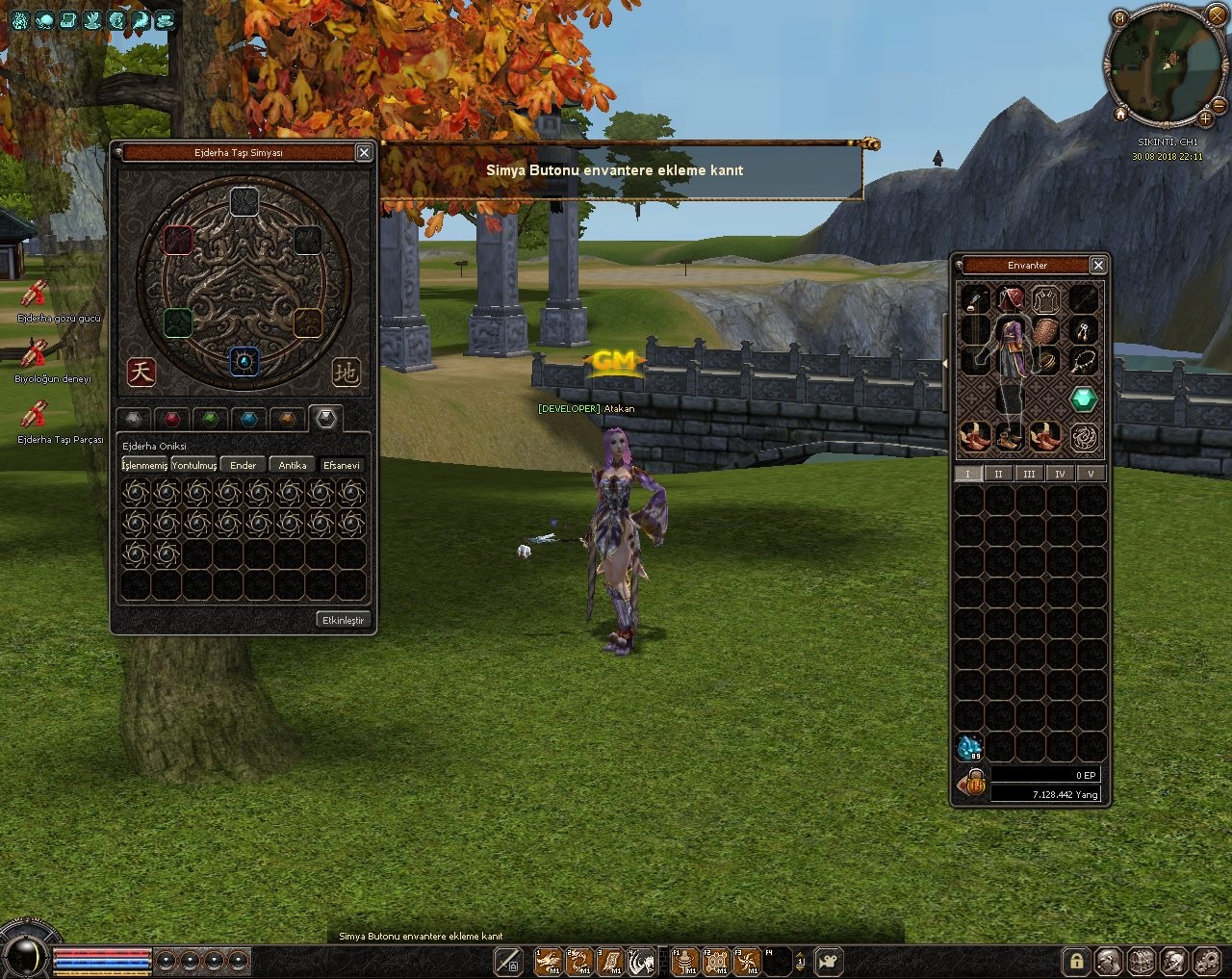
Selamlar,Envantere simya butonu eklemeyi paylaşıyorum ben forumda aradım bulamadım varsa daha önceden affola
sistemi kendim yazmadım Karışık packlerden toparladım.
Benim filesimde yoktu ekledim kodlar packlerde zaten var ama yorum satırına dönüşmüş de olabiliyor bazı packlerde
Buyrun kanıt:
 [/CENTER]
sistemi kendim yazmadım Karışık packlerden toparladım.
Benim filesimde yoktu ekledim kodlar packlerde zaten var ama yorum satırına dönüşmüş de olabiliyor bazı packlerde
Buyrun kanıt:
Linkler
Envantere Simya Butonu Ekleme Rehberi
Metin2 Lobby üzerinden Metin2 özel sunucularında simya sistemi gibi önemli bir gameplay özelliğini kullanıcı dostu şekilde entegre etmek, oyuncu deneyimini ciddi anlamda artırabilir. Bu rehberde, envanter ekranına Simya Butonu eklemeyi adım adım anlatacağız. Bu işlem genellikle C++ kaynak kod tarafında oyun sunucusunda ve Python GUI[/OCR] tarafında istemci tarafında gerçekleştirilir.
1. Gereksinimler
- Metin2 Client Source (UIScript, Root)
- Metin2 Game Server Source (Game Core)
- Python Bilgisi
- Simya Sistemi Aktif Olan Sunucu
2. Python Tarafında UI Tasarımı
Öncelikle, uiscript klasöründe bulunan envanter arayüzü dosyasını düzenlememiz gerekir. Genellikle bu dosya InventoryWindow.py olarak adlandırılır. Bu dosyanın içine bir buton tanımlaması yapacağız.
Örnek Buton Tanımı:
simyaButton = ui.Button()
simyaButton.SetParent(self.board)
simyaButton.SetPosition(10, 300)
simyaButton.SetUpVisual('locale/tr/alchemy_btn_normal.tga')
simyaButton.SetOverVisual('locale/tr/alchemy_btn_over.tga')
simyaButton.SetDownVisual('locale/tr/alchemy_btn_down.tga')
simyaButton.SetToolTipText('Simya Sistemini Açar')
simyaButton.SetEvent(self.OpenAlchemySystem)
3. Simya Fonksiyonunu Tanımlama
OpenAlchemySystem fonksiyonu, simya penceresini açmakla görevlidir. Bu fonksiyon genellikle game.py veya benzeri bir dosyada tanımlanır. Bu fonksiyon, simya arayüzünü başlatır ve sunucudan gerekli verileri çeker.
4. Sunucu Tarafında Komut İşleme
Game Core tarafında, simya sistemini tetikleyen bir komut tanımlamalısınız. Bu komut genellikle input_main.cpp[/OCR] veya packet.h[/OCR] üzerinden yapılır. Oyuncu butona bastığında, istemci bir paket gönderir ve sunucu bu paketi alarak simya penceresini açar.
5. Paket Tanımlama ve Gönderme
client -> server: PACKET_TYPE_OPEN_ALCHEMY_WINDOW
server -> client: Alchemy Items Listesi
6. Simya Penceresi Arayüzü
Simya penceresi, ui.py[/OCR] kullanılarak ayrı bir sınıf olarak tanımlanmalıdır. Bu sınıf, simya işlemleri için gerekli olan slotları, butonları ve diğer görsel bileşenleri içerir. ui.ScriptWindow[/OCR] temel alınarak oluşturulabilir.
7. Test Aşaması
Tüm yapılandırmalar tamamlandıktan sonra, hem istemci hem de sunucu tarafında test yapılmalıdır. Butonun çalışıp çalışmadığı, simya penceresinin açılıp açılmadığı ve simya işlemleri doğru şekilde işleniyor mu kontrol edilmelidir. Hata ayıklama araçları yardımıyla loglarda hatalar izlenebilir.
Metin2 Lobby üzerinden sunulan kaynaklar sayesinde bu tür sistemleri daha hızlı ve sorunsuz entegre edebilirsiniz. Simya sistemi gibi modüler yapılar, oyuncu etkileşimini artırdığı gibi sunucu sadakatini de güçlendirir.
Adding Alchemy Button to Inventory Guide
Metin2 Lobby enables integrating important gameplay features like the alchemy system in a user-friendly way on Metin2 private servers. This guide will explain step by step how to add an Alchemy Button to the inventory screen. This process is generally performed on both the game server side via C++ source code and on the client side via Python GUI.
1. Requirements
- Metin2 Client Source (UIScript, Root)
- Metin2 Game Server Source (Game Core)
- Knowledge of Python
- Server with Active Alchemy System
2. UI Design on Python Side
Firstly, we need to modify the inventory interface file located in the uiscript folder. This file is usually named InventoryWindow.py. We will add a button definition inside this file.
Sample Button Definition:
alchemyButton = ui.Button()
alchemyButton.SetParent(self.board)
alchemyButton.SetPosition(10, 300)
alchemyButton.SetUpVisual('locale/tr/alchemy_btn_normal.tga')
alchemyButton.SetOverVisual('locale/tr/alchemy_btn_over.tga')
alchemyButton.SetDownVisual('locale/tr/alchemy_btn_down.tga')
alchemyButton.SetToolTipText('Opens Alchemy System')
alchemyButton.SetEvent(self.OpenAlchemySystem)
3. Defining the Alchemy Function
The OpenAlchemySystem function is responsible for opening the alchemy window. This function is typically defined in files such as game.py. The function initializes the alchemy interface and fetches necessary data from the server.
4. Command Handling on Server Side
On the Game Core side, you must define a command that triggers the alchemy system. This command is usually handled through input_main.cpp or packet.h. When the player clicks the button, the client sends a packet, and the server receives it and opens the alchemy window.
5. Packet Definition and Sending
client -> server: PACKET_TYPE_OPEN_ALCHEMY_WINDOW
server -> client: Alchemy Items List
6. Alchemy Window Interface
The alchemy window should be defined as a separate class using ui.py. This class includes the required slots, buttons, and other visual components for alchemy operations. It can be built upon ui.ScriptWindow.
7. Testing Phase
After all configurations are completed, tests must be conducted on both client and server sides. Whether the button works, whether the alchemy window opens, and whether alchemy operations are processed correctly should be checked. Debugging tools can be used to trace errors in logs.
Thanks to the resources provided via Metin2 Lobby, such modular systems can be integrated faster and more smoothly. Features like the alchemy system not only enhance player interaction but also strengthen server loyalty.
Ziyaretçiler için gizlenmiş link,görmek için üye olmalısınız!
Giriş yap veya üye ol.
Ziyaretçiler için gizlenmiş link,görmek için üye olmalısınız!
Giriş yap veya üye ol.
Envantere Simya Butonu Ekleme Rehberi
Metin2 Lobby üzerinden Metin2 özel sunucularında simya sistemi gibi önemli bir gameplay özelliğini kullanıcı dostu şekilde entegre etmek, oyuncu deneyimini ciddi anlamda artırabilir. Bu rehberde, envanter ekranına Simya Butonu eklemeyi adım adım anlatacağız. Bu işlem genellikle C++ kaynak kod tarafında oyun sunucusunda ve Python GUI[/OCR] tarafında istemci tarafında gerçekleştirilir.
1. Gereksinimler
- Metin2 Client Source (UIScript, Root)
- Metin2 Game Server Source (Game Core)
- Python Bilgisi
- Simya Sistemi Aktif Olan Sunucu
2. Python Tarafında UI Tasarımı
Öncelikle, uiscript klasöründe bulunan envanter arayüzü dosyasını düzenlememiz gerekir. Genellikle bu dosya InventoryWindow.py olarak adlandırılır. Bu dosyanın içine bir buton tanımlaması yapacağız.
Örnek Buton Tanımı:
simyaButton = ui.Button()
simyaButton.SetParent(self.board)
simyaButton.SetPosition(10, 300)
simyaButton.SetUpVisual('locale/tr/alchemy_btn_normal.tga')
simyaButton.SetOverVisual('locale/tr/alchemy_btn_over.tga')
simyaButton.SetDownVisual('locale/tr/alchemy_btn_down.tga')
simyaButton.SetToolTipText('Simya Sistemini Açar')
simyaButton.SetEvent(self.OpenAlchemySystem)
3. Simya Fonksiyonunu Tanımlama
OpenAlchemySystem fonksiyonu, simya penceresini açmakla görevlidir. Bu fonksiyon genellikle game.py veya benzeri bir dosyada tanımlanır. Bu fonksiyon, simya arayüzünü başlatır ve sunucudan gerekli verileri çeker.
4. Sunucu Tarafında Komut İşleme
Game Core tarafında, simya sistemini tetikleyen bir komut tanımlamalısınız. Bu komut genellikle input_main.cpp[/OCR] veya packet.h[/OCR] üzerinden yapılır. Oyuncu butona bastığında, istemci bir paket gönderir ve sunucu bu paketi alarak simya penceresini açar.
5. Paket Tanımlama ve Gönderme
client -> server: PACKET_TYPE_OPEN_ALCHEMY_WINDOW
server -> client: Alchemy Items Listesi
6. Simya Penceresi Arayüzü
Simya penceresi, ui.py[/OCR] kullanılarak ayrı bir sınıf olarak tanımlanmalıdır. Bu sınıf, simya işlemleri için gerekli olan slotları, butonları ve diğer görsel bileşenleri içerir. ui.ScriptWindow[/OCR] temel alınarak oluşturulabilir.
7. Test Aşaması
Tüm yapılandırmalar tamamlandıktan sonra, hem istemci hem de sunucu tarafında test yapılmalıdır. Butonun çalışıp çalışmadığı, simya penceresinin açılıp açılmadığı ve simya işlemleri doğru şekilde işleniyor mu kontrol edilmelidir. Hata ayıklama araçları yardımıyla loglarda hatalar izlenebilir.
Metin2 Lobby üzerinden sunulan kaynaklar sayesinde bu tür sistemleri daha hızlı ve sorunsuz entegre edebilirsiniz. Simya sistemi gibi modüler yapılar, oyuncu etkileşimini artırdığı gibi sunucu sadakatini de güçlendirir.
Adding Alchemy Button to Inventory Guide
Metin2 Lobby enables integrating important gameplay features like the alchemy system in a user-friendly way on Metin2 private servers. This guide will explain step by step how to add an Alchemy Button to the inventory screen. This process is generally performed on both the game server side via C++ source code and on the client side via Python GUI.
1. Requirements
- Metin2 Client Source (UIScript, Root)
- Metin2 Game Server Source (Game Core)
- Knowledge of Python
- Server with Active Alchemy System
2. UI Design on Python Side
Firstly, we need to modify the inventory interface file located in the uiscript folder. This file is usually named InventoryWindow.py. We will add a button definition inside this file.
Sample Button Definition:
alchemyButton = ui.Button()
alchemyButton.SetParent(self.board)
alchemyButton.SetPosition(10, 300)
alchemyButton.SetUpVisual('locale/tr/alchemy_btn_normal.tga')
alchemyButton.SetOverVisual('locale/tr/alchemy_btn_over.tga')
alchemyButton.SetDownVisual('locale/tr/alchemy_btn_down.tga')
alchemyButton.SetToolTipText('Opens Alchemy System')
alchemyButton.SetEvent(self.OpenAlchemySystem)
3. Defining the Alchemy Function
The OpenAlchemySystem function is responsible for opening the alchemy window. This function is typically defined in files such as game.py. The function initializes the alchemy interface and fetches necessary data from the server.
4. Command Handling on Server Side
On the Game Core side, you must define a command that triggers the alchemy system. This command is usually handled through input_main.cpp or packet.h. When the player clicks the button, the client sends a packet, and the server receives it and opens the alchemy window.
5. Packet Definition and Sending
client -> server: PACKET_TYPE_OPEN_ALCHEMY_WINDOW
server -> client: Alchemy Items List
6. Alchemy Window Interface
The alchemy window should be defined as a separate class using ui.py. This class includes the required slots, buttons, and other visual components for alchemy operations. It can be built upon ui.ScriptWindow.
7. Testing Phase
After all configurations are completed, tests must be conducted on both client and server sides. Whether the button works, whether the alchemy window opens, and whether alchemy operations are processed correctly should be checked. Debugging tools can be used to trace errors in logs.
Thanks to the resources provided via Metin2 Lobby, such modular systems can be integrated faster and more smoothly. Features like the alchemy system not only enhance player interaction but also strengthen server loyalty.
