

Merhaba arkadaşlar bugün sizlere png'yi tga ya çeviren tga'yı png ye çeviren bat dosyalarını sizlere paylaşmak istedim, işlerinizi çok kolaylaştıracağından eminim hayırlı kullanımlar.
Görüntüler;
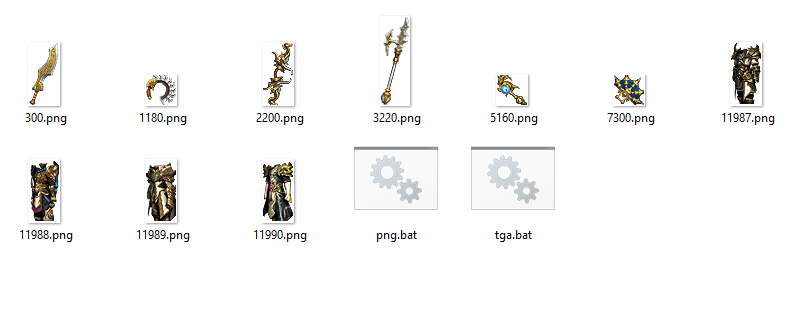 --------------------------------------------------------------------------------------------------------------------------

Resimlerdede örnek verdiğim gibi, tek yapmanız gereken resimleri bat dosyası üstüne sürüklemek olacaktır.
Not: sadece png ve tga çevirme yapmaktadır.
Metin2 oyuncuları ve özellikle client editörleri arasında sıkça karşılaşılan bir ihtiyaç, grafik dosyalarının format dönüşümleridir. Özellikle texture veya effect dosyaları gibi görsel elementler, bazı Metin2 istemcilerinde .png uzantılı dosyalar yerine .tga (Targa) formatında olması gerekebilir. Bu durumda elinizde PNG formatındaki bir dosyayı hızlı ve toplu şekilde TGA'ya dönüştürmeniz gerekir. İşte bu noktada PNG > TGA çevirme bat dosyası devreye girer!
Neden PNG'den TGA'ya Dönüştürmek Gerekir?
Metin2'nin farklı versiyonları ve özelleştirilmiş istemciler (örneğin metin2lobby.com üzerinden paylaşılan martysama client veya Metin2Dev client gibi) farklı grafik formatlarını destekler. Bazı eski veya özel yapılandırılmış istemciler, texture dosyalarını yalnızca .tga formatında tanır. Bu da PNG dosyalarını doğrudan kullanmanızı engeller. Ayrıca, TGA formatı şeffaflık (alpha channel) desteğiyle bilinir ve bu özellik, özellikle effect veya skin dosyaları için kritik öneme sahiptir.
Bat Dosyası ile Toplu Dönüşüm: Kolaylık ve Verimlilik
Manuel olarak tek tek dosya dönüştürmek zaman kaybıdır. İşte bu yüzden bir .bat (batch) dosyası oluşturmak, özellikle Metin2 pack edit yapanlar için büyük kolaylık sağlar. Bu bat dosyası, belirttiğiniz klasördeki tüm .png dosyalarını otomatik olarak .tga formatına çevirir. Bunu yaparken genellikle arka planda ImageMagick gibi ücretsiz ve güçlü bir görüntü işleme aracı kullanılır.
Nasıl Kullanılır? Adım Adım Rehber
1. ImageMagick Kurulumu: Öncelikle sisteminize
2. Bat Dosyası Oluşturma: Metin düzenleyicinizle (Notepad++) aşağıdaki komutları yazın ve 'png2tga.bat' olarak kaydedin:
@echo off
for %%f in (*.png) do convert "%%f" "%%~nf.tga"
echo Dönüşüm tamamlandı!
pause
3. Dosyaları Hazırlama: Dönüştürmek istediğiniz tüm .png dosyalarını, yukarıda oluşturduğunuz .bat dosyası ile aynı klasöre kopyalayın.
4. Çalıştırma: 'png2tga.bat' dosyasına çift tıklayın. Komut penceresi açılacak ve tüm PNG'ler TGA'ya dönüşecektir. İşlem bittiğinde yeni .tga dosyalarınız aynı klasörde görünecektir.
Metin2 İstemci Paketleri ve Kullanım Alanları
Bu tür dönüşümler, özellikle Metin2 client pack, Metin2 pvp client veya özel client hazırlayanlar için vazgeçilmez bir araçtır. Metin2lobby.com gibi platformlarda paylaşılan istemcilerde texture hataları yaşamamak için dosya formatlarının doğru olması büyük önem taşır. Ayrıca Metin2 client edit sürecinde yeni skin veya effect eklerken bu bat dosyası sayesinde çoklu dosyaları hızlıca işleyebilirsiniz.
Dikkat Edilmesi Gerekenler
Alpha Channel: TGA formatı şeffaflık destekler. PNG'nizde şeffaf alan varsa, dönüşüm sırasında bu özelliğin korunması için ImageMagick'in varsayılan ayarları yeterlidir.
Renk Derinliği: Bazı eski Metin2 istemcileri 24-bit veya 32-bit TGA dosyalarını tercih edebilir. Gerekirse ImageMagick komutlarına ek parametreler ekleyerek bu ayarları özelleştirebilirsiniz.
Sonuç olarak, PNG > TGA çevirme bat dosyası, Metin2 topluluğunda çalışan herkes için zaman kazandıran ve hata riskini azaltan pratik bir çözümdür. Metin2lobby.com ekibi olarak, siz değerli oyuncularımızın daha iyi içerik üretebilmesi için bu tür teknik rehberleri sunmaya devam ediyoruz.
One of the most common needs among Metin2 players, especially client editors, is the conversion of graphic file formats. Specifically, visual elements such as textures or effects may require files in [.tga (Targa) format](https://en.wikipedia.org/wiki/Truevision_TGA) rather than [.png](https://en.wikipedia.org/wiki/PNG) in certain Metin2 clients. In such cases, you need to quickly and batch-convert your PNG files to TGA. This is where a PNG > TGA conversion batch file becomes essential!
Why Convert from PNG to TGA?
Different versions and customized clients of Metin2 (such as the martysama client or Metin2Dev client shared via metin2lobby.com) support different graphic formats. Some older or specially configured clients only recognize texture files in .tga format. This prevents you from using PNG files directly. Additionally, the TGA format is known for its transparency (alpha channel) support, a feature critically important for effects or skins.
Batch Conversion with a Batch File: Convenience and Efficiency
Manually converting files one by one is time-consuming. Therefore, creating a .bat (batch) file offers significant convenience, especially for those editing Metin2 packs. This batch file automatically converts all .png files in a specified folder to .tga format, typically using a powerful and free image processing tool like ImageMagick in the background.
How to Use It? Step-by-Step Guide
1. Install ImageMagick: First, ensure
2. Create the Batch File: Using a text editor (like Notepad++), write the following commands and save it as 'png2tga.bat':
@echo off
for %%f in (*.png) do convert "%%f" "%%~nf.tga"
echo Conversion complete!
pause
3. Prepare Your Files: Copy all the .png files you want to convert into the same folder as the .bat file you created above.
4. Run It: Double-click the 'png2tga.bat' file. A command window will open, and all PNGs will be converted to TGA. Once the process is complete, your new .tga files will appear in the same folder.
Metin2 Client Packs and Use Cases
Such conversions are an indispensable tool, particularly for those preparing Metin2 client packs, Metin2 PvP clients, or custom clients. Ensuring correct file formats prevents texture errors in clients shared on platforms like metin2lobby.com. Furthermore, when adding new skins or effects during the Metin2 client editing process, this batch file allows you to process multiple files rapidly.
Important Considerations
Alpha Channel: The TGA format supports transparency. If your PNG has transparent areas, ImageMagick's default settings will preserve this feature during conversion.
Color Depth: Some older Metin2 clients may prefer 24-bit or 32-bit TGA files. If necessary, you can customize these settings by adding extra parameters to the ImageMagick commands.
In conclusion, a PNG > TGA conversion batch file is a practical solution that saves time and reduces the risk of errors for everyone working within the Metin2 community. As the Metin2lobby.com team, we continue to provide such technical guides so our valuable players can create better content.
Görüntüler;
Resimlerdede örnek verdiğim gibi, tek yapmanız gereken resimleri bat dosyası üstüne sürüklemek olacaktır.
Not: sadece png ve tga çevirme yapmaktadır.
Ziyaretçiler için gizlenmiş link,görmek için üye olmalısınız!
Giriş yap veya üye ol.
Ziyaretçiler için gizlenmiş link,görmek için üye olmalısınız!
Giriş yap veya üye ol.
Png > Tga Çevirme Bat Dosyası: Metin2 İstemciler İçin Görsel Dönüştürme Rehberi
Metin2 oyuncuları ve özellikle client editörleri arasında sıkça karşılaşılan bir ihtiyaç, grafik dosyalarının format dönüşümleridir. Özellikle texture veya effect dosyaları gibi görsel elementler, bazı Metin2 istemcilerinde .png uzantılı dosyalar yerine .tga (Targa) formatında olması gerekebilir. Bu durumda elinizde PNG formatındaki bir dosyayı hızlı ve toplu şekilde TGA'ya dönüştürmeniz gerekir. İşte bu noktada PNG > TGA çevirme bat dosyası devreye girer!
Neden PNG'den TGA'ya Dönüştürmek Gerekir?
Metin2'nin farklı versiyonları ve özelleştirilmiş istemciler (örneğin metin2lobby.com üzerinden paylaşılan martysama client veya Metin2Dev client gibi) farklı grafik formatlarını destekler. Bazı eski veya özel yapılandırılmış istemciler, texture dosyalarını yalnızca .tga formatında tanır. Bu da PNG dosyalarını doğrudan kullanmanızı engeller. Ayrıca, TGA formatı şeffaflık (alpha channel) desteğiyle bilinir ve bu özellik, özellikle effect veya skin dosyaları için kritik öneme sahiptir.
Bat Dosyası ile Toplu Dönüşüm: Kolaylık ve Verimlilik
Manuel olarak tek tek dosya dönüştürmek zaman kaybıdır. İşte bu yüzden bir .bat (batch) dosyası oluşturmak, özellikle Metin2 pack edit yapanlar için büyük kolaylık sağlar. Bu bat dosyası, belirttiğiniz klasördeki tüm .png dosyalarını otomatik olarak .tga formatına çevirir. Bunu yaparken genellikle arka planda ImageMagick gibi ücretsiz ve güçlü bir görüntü işleme aracı kullanılır.
Nasıl Kullanılır? Adım Adım Rehber
1. ImageMagick Kurulumu: Öncelikle sisteminize
Ziyaretçiler için gizlenmiş link,görmek için üye olmalısınız!
Giriş yap veya üye ol.
yüklü olmalıdır. Kurulum sırasında 'Install legacy utilities (e.g. convert)' seçeneğinin işaretli olduğundan emin olun.2. Bat Dosyası Oluşturma: Metin düzenleyicinizle (Notepad++) aşağıdaki komutları yazın ve 'png2tga.bat' olarak kaydedin:
@echo off
for %%f in (*.png) do convert "%%f" "%%~nf.tga"
echo Dönüşüm tamamlandı!
pause
3. Dosyaları Hazırlama: Dönüştürmek istediğiniz tüm .png dosyalarını, yukarıda oluşturduğunuz .bat dosyası ile aynı klasöre kopyalayın.
4. Çalıştırma: 'png2tga.bat' dosyasına çift tıklayın. Komut penceresi açılacak ve tüm PNG'ler TGA'ya dönüşecektir. İşlem bittiğinde yeni .tga dosyalarınız aynı klasörde görünecektir.
Metin2 İstemci Paketleri ve Kullanım Alanları
Bu tür dönüşümler, özellikle Metin2 client pack, Metin2 pvp client veya özel client hazırlayanlar için vazgeçilmez bir araçtır. Metin2lobby.com gibi platformlarda paylaşılan istemcilerde texture hataları yaşamamak için dosya formatlarının doğru olması büyük önem taşır. Ayrıca Metin2 client edit sürecinde yeni skin veya effect eklerken bu bat dosyası sayesinde çoklu dosyaları hızlıca işleyebilirsiniz.
Dikkat Edilmesi Gerekenler
Alpha Channel: TGA formatı şeffaflık destekler. PNG'nizde şeffaf alan varsa, dönüşüm sırasında bu özelliğin korunması için ImageMagick'in varsayılan ayarları yeterlidir.
Renk Derinliği: Bazı eski Metin2 istemcileri 24-bit veya 32-bit TGA dosyalarını tercih edebilir. Gerekirse ImageMagick komutlarına ek parametreler ekleyerek bu ayarları özelleştirebilirsiniz.
Sonuç olarak, PNG > TGA çevirme bat dosyası, Metin2 topluluğunda çalışan herkes için zaman kazandıran ve hata riskini azaltan pratik bir çözümdür. Metin2lobby.com ekibi olarak, siz değerli oyuncularımızın daha iyi içerik üretebilmesi için bu tür teknik rehberleri sunmaya devam ediyoruz.
Png > Tga Conversion Batch File: A Visual Conversion Guide for Metin2 Clients
One of the most common needs among Metin2 players, especially client editors, is the conversion of graphic file formats. Specifically, visual elements such as textures or effects may require files in [.tga (Targa) format](https://en.wikipedia.org/wiki/Truevision_TGA) rather than [.png](https://en.wikipedia.org/wiki/PNG) in certain Metin2 clients. In such cases, you need to quickly and batch-convert your PNG files to TGA. This is where a PNG > TGA conversion batch file becomes essential!
Why Convert from PNG to TGA?
Different versions and customized clients of Metin2 (such as the martysama client or Metin2Dev client shared via metin2lobby.com) support different graphic formats. Some older or specially configured clients only recognize texture files in .tga format. This prevents you from using PNG files directly. Additionally, the TGA format is known for its transparency (alpha channel) support, a feature critically important for effects or skins.
Batch Conversion with a Batch File: Convenience and Efficiency
Manually converting files one by one is time-consuming. Therefore, creating a .bat (batch) file offers significant convenience, especially for those editing Metin2 packs. This batch file automatically converts all .png files in a specified folder to .tga format, typically using a powerful and free image processing tool like ImageMagick in the background.
How to Use It? Step-by-Step Guide
1. Install ImageMagick: First, ensure
Ziyaretçiler için gizlenmiş link,görmek için üye olmalısınız!
Giriş yap veya üye ol.
is installed on your system. During installation, make sure the 'Install legacy utilities (e.g. convert)' option is checked.2. Create the Batch File: Using a text editor (like Notepad++), write the following commands and save it as 'png2tga.bat':
@echo off
for %%f in (*.png) do convert "%%f" "%%~nf.tga"
echo Conversion complete!
pause
3. Prepare Your Files: Copy all the .png files you want to convert into the same folder as the .bat file you created above.
4. Run It: Double-click the 'png2tga.bat' file. A command window will open, and all PNGs will be converted to TGA. Once the process is complete, your new .tga files will appear in the same folder.
Metin2 Client Packs and Use Cases
Such conversions are an indispensable tool, particularly for those preparing Metin2 client packs, Metin2 PvP clients, or custom clients. Ensuring correct file formats prevents texture errors in clients shared on platforms like metin2lobby.com. Furthermore, when adding new skins or effects during the Metin2 client editing process, this batch file allows you to process multiple files rapidly.
Important Considerations
Alpha Channel: The TGA format supports transparency. If your PNG has transparent areas, ImageMagick's default settings will preserve this feature during conversion.
Color Depth: Some older Metin2 clients may prefer 24-bit or 32-bit TGA files. If necessary, you can customize these settings by adding extra parameters to the ImageMagick commands.
In conclusion, a PNG > TGA conversion batch file is a practical solution that saves time and reduces the risk of errors for everyone working within the Metin2 community. As the Metin2lobby.com team, we continue to provide such technical guides so our valuable players can create better content.
